Total Commander for Android
Created:
Total Commander for Android is the ultimate file manager you can get for your Android phone, whether made by Sharp or not. It's the first thing I install on all my phones when I first receive them or after a factory reset.
In 2024, Google forced Total Commander to remove its side-loaded APK installation functionality, which means the version you can get from Google Play is crippled with regard to installing apps from other sources. You need to keep a copy of the latest fully-featured version somewhere on your computer or get it directly from Ghisler's website (link below).
Here's how I do this:
- Transfer the full-version APK to the phone.
- Use the phone's built-in file manager, e.g. Files by Google, to install the APK. If installing an APK for the first time, you will be warned that the option has been disabled but you'll see a button to enable it in Settings for that file manager.
- Once you've installed Total Commander, you can forget about all other file managers. They may have a more polished user interface but they can never match the speed, ease, and functionalities that TC offers.
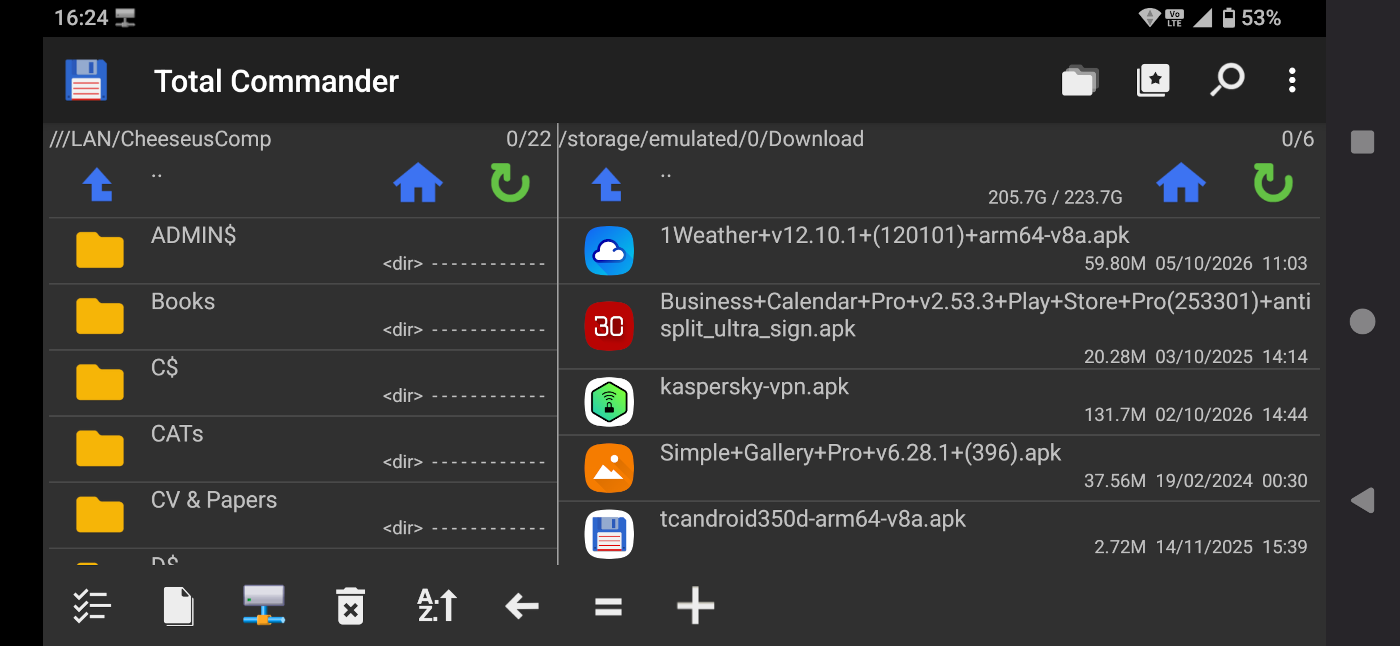
Transfer files from/to your LAN computers
This is one of the functionalities of TC I use a lot: copy or move files from my computer(s) to my phone(s) or from my phone(s) to my computer(s). Here's the setup work you need to complete before you can do this.
- On your Windows 11 computer: Start > Settings > Accounts > Other Users > Add account. Of course, Microsoft will try to get you to create an MS account. Don't fall for that. Click "I don't have this person's sign-in information". On the next screen, click "Add a user without a Microsoft account". On the next screen, type a username and password. Once ready, return to the same newly created account and make it an administrator account.
- On your phone: Open Total Commander and tap the link at the bottom of the list: "Add plugins (download)...". Download the plugin titled "LAN (Windows network) Plugin" and install it.
- Once ready, tap "LAN (Windows shares)" in the main menu to open it.
- Tap "New server". Give your server a name (I always use the name of that computer – because there are at least four desktop and laptop computers at home).
- On the next screen, in the "Server name/directory" field, type your computer's internal IP, the IP address it has on your local area network, e.g. 192.168.1.100. Important: you will also need to setup you router or computer to always use the same IP address on your LAN.
- In the "User name" and "Password" fields, type the details of the Windows account you created above.
- I always untick the "Protect with master pass" option but you can use it if you like.
- Make sure both SMB2 and SMB3 are ticked – they are, by default.
- Click "OK" and you're ready. Now you can quickly connect to your computer, as long as both your phone and the computer use the same internet connection, and transfer whatever you like back and forth.
To get the full-version APK of Total Commander for Android, scan the QR code above or click the "Visit website" button below to open the Total Commander forum page.
Advertisement