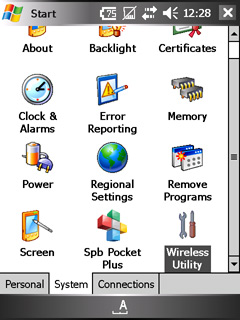
W-ZERO3 & EM One - Switch the User Interface to English
Created:
OS: WinMobile
W-ZERO3: In order to change the device user interface to English, you will need to install the Asukaly Localize Tool, available in the Downloads sections.
- Install ENG_mui4Zero3.cab to your device memory.
- Soft reset.
- Install EnableRapi.cab to your device memory.
- Soft reset.
- Using ActiveSync, transfer the D2Util.cpl file to your Windows directory.
- Soft reset again.
The last file provides the English localisation of the Wi-Fi connectivity module.
EM ONE: To switch the device to English, you will need to manually change some Registry settings or download the localisation files from the Forum. Using your preferred registry editor, change the following:
- HKEY_CURRENT_USER/MUI/CurLang 1041→1033
- HKEY_LOCAL_MACHINE/MUI/SysLang 1041→1033
- Soft reset
- Then rename the following folders:
- Windows\スタートメニュー → Start Menu
- Windows\スタートアップ → Startup
- Start Menu\プログラム → Programs
- Start Menu\設定 → Settings
- My Documents\マイピクチャ → My Pictures
- Soft reset.
- To rename Today items on both the W-ZERO and the EM ONE, you will need to edit the registry again. Go to:
HKEY_LOCAL_MACHINE/Software/Microsoft/Today/Items
and rename each folder as follows:- カレンダー → Calendar
- デバイスロック → Device Lock
- メモリ → Memory
- メッセージング → Messaging
- 所有者情報 → Owner Info
- SHメール → Sharp Mail (SMS)
- タスク → Tasks
- ワイヤレス → Wireless (only on the EM ONE)
Advertisement