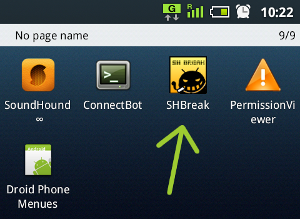
SHBreak - Temp Root for SoftBank 005SH / Docomo SH-12C
Created:
The SHBreak application will allow you to get temporary root access on your Sharp Android phone.
SHBreak v. 1.7 works on both the 005SH and the SH-12C, but SHBreak v.1.8 only works on the 005SH. There are newer versions of the app (most recent is v.2.0) but they don't seem to work on my 005SH / SH-12C.
The below procedure is only possible if you have upgraded your 005SH to Android 2.3.4. It will not work if you are running 2.2!
Temp root will let you disable default applications that always start with the phone and take up space in both the avaialbe RAM and the onboard storage. It will also let you copy some system files you do not normally have access to.
There is also a permanent root solution available for the 003SH / 005SH / 007SH / 009SH.
For the temp root, you need: SHBreak (v. 1.7), ConnectBot and PermissionViewer (both from Google Play).
1. Install and run SHBreak. You will see the below screen. Tap "Break2" (or "Break1", whichever is shown). The app will close automatically. Run it again and you will see the menu from the second screenshot. Tap "Copy au". The app will close automatically again.
NB! If, after rooting and rebooting, your Wi-Fi does not work, you need to run the app again and select the second button ("rm -rf /data/misc/dhcp/*"). I have never had ths problem, I am only copying the original Japanese instructions. If you are still having problems, refer to the original Japanese site.

2. Run PermissionViewer to see the name of the application you want to disable. You don't actually need PermissionViewer - you can simply go to Settings > Applications > Running Processes and open a running program's details and the name is given at the bottom.
3. Run ConnectBot and choose LOCAL from the drop down menu at the bottom. Type your desired username and log on.
4. In the command prompt, you should see the sign #. This means you have Root Access. If instead you see $ this means that you don't and you need to go back to SHBreak. This time you will see the following screen:

When you have the # leading symbol, you can processed to disabling the unwanted app(s).
5. Type:
pm disable jp.softbank.mb.bookmanager (to disable the built-in Book app) and press Enter (on the 005SH hardware keyboard or your software Enter button).
You should see the following:

6. Reboot your device. In the end, you should get this:

7. If you want to reenable the application, just type pm enable jp.softbank.mb.bookmanager and that's it!
8. If, like me, you accidentally forget which apps you have disabled, here is the ADB command to list all disabled apps on your phone (from your PC):
adb shell pm list packages -d
The command for the same, but from your phone, would be
adb pm list packages -d
9. REMEMBER! BEFORE YOU PERFORM FULL DATA WIPE ON YOUR PHONE (RESET TO FACTORY SETTING) RE-ENABLE ALL APPS YOU HAVE DISABLED OR YOUR PHONE WILL BE BRICKED!
LIST OF APPS I HAVE SUCCESSFULLY DISABLED:
BOOK - jp.softbank.mb.bookmanager
BOOK - jp.softbank.mb.store
Wi-Fi Spot Settings - jp.co.softbank.wispr.froyo
Public wireless LAN auto-login - jp.co.sharp.android.WISPr
One Seg - jp.co.fsi.fs1seg
Browser - com.android.browser
mixiSH - jp.co.sharp.android.mixiappmanager
Documents To Go - com.dataviz.docstogo
Household account Photo Money - jp.co.sharp.android.photomoney
Mora Touch - jp.co.labelgate.moratouch
Music Player - arcsoft.android.musicplayer
News & Weather - com.google.android.apps.genie.geniewidget
HDMI - jp.co.sharp.android.hdmi *
* A couple of days after I disabled the HDMI, I started having SIM card issues - the phone would not detect it at all or would lose signal all of a sudden. After two days of trying to get it to work - on the 005SH and the 904SH, the SIM card eventually became "undetectable" on a normal phone too. I had to buy a new SIM card. And I enabled HDMI. I haven't had the issue since then but I am not at all sure these two things are related.
Advertisement