Updating Japanese Sharps outside Japan in 2026
Created:
The upgrade to Android 16 for my AQUOS R8 pro SH-80P (the SIM-free version) rolled out in March. Since then, I have tried quite a few times to upgrade it following the steps in my 2022 article, which includes clearing the storage and cache of the Google Play apps and using a VPN connection. None worked. But this method did work before, last tested in 2025, and I did successfully install the previous two OS upgrades, first to Android 14, then to Android 15, on my phone, on a friend's AQUOS R8 pro, and another friend's AQUOS sense9. Maybe something changed with the Android 15 upgrade.
I read on one of the Russian forums that you could use a Japanese e-SIM but I didn't really want to spend money on an unconfirmed report.
So, I decided to go nuclear: reset the phone to factory settings. That's a pain in the behind, yes, but... And it worked!
Here are the steps:
- Backup anything you care to preserve: photos, videos, etc. If you have a microSD card, you can move photos and videos and documents to it.
- Remove your SIM card.
- Settings > System > Reset options > Erase all data (factory reset) – but untick the option to 'Erase SD card'.
- After the factory reset completes, make sure your region and time zone are set to Japan. No need to change system language to Japanese.
- Turn on Wi-Fi and connect to your (home) network.
- You can log in to your Google account. You'll need this to be able to access Google Play to install a VPN app. As an alternative, you can pre-load the apk of your preferred VPN app on your SD card and install it from there, thus skipping the Google login. But logging in to your Google account won't block the search for available updates.
- Start the VPN app and choose a server in Japan. I used the Kaspersky VPN app because I have a paid subscription for my computers. But any app should do as long as it lets you select a server in Japan.
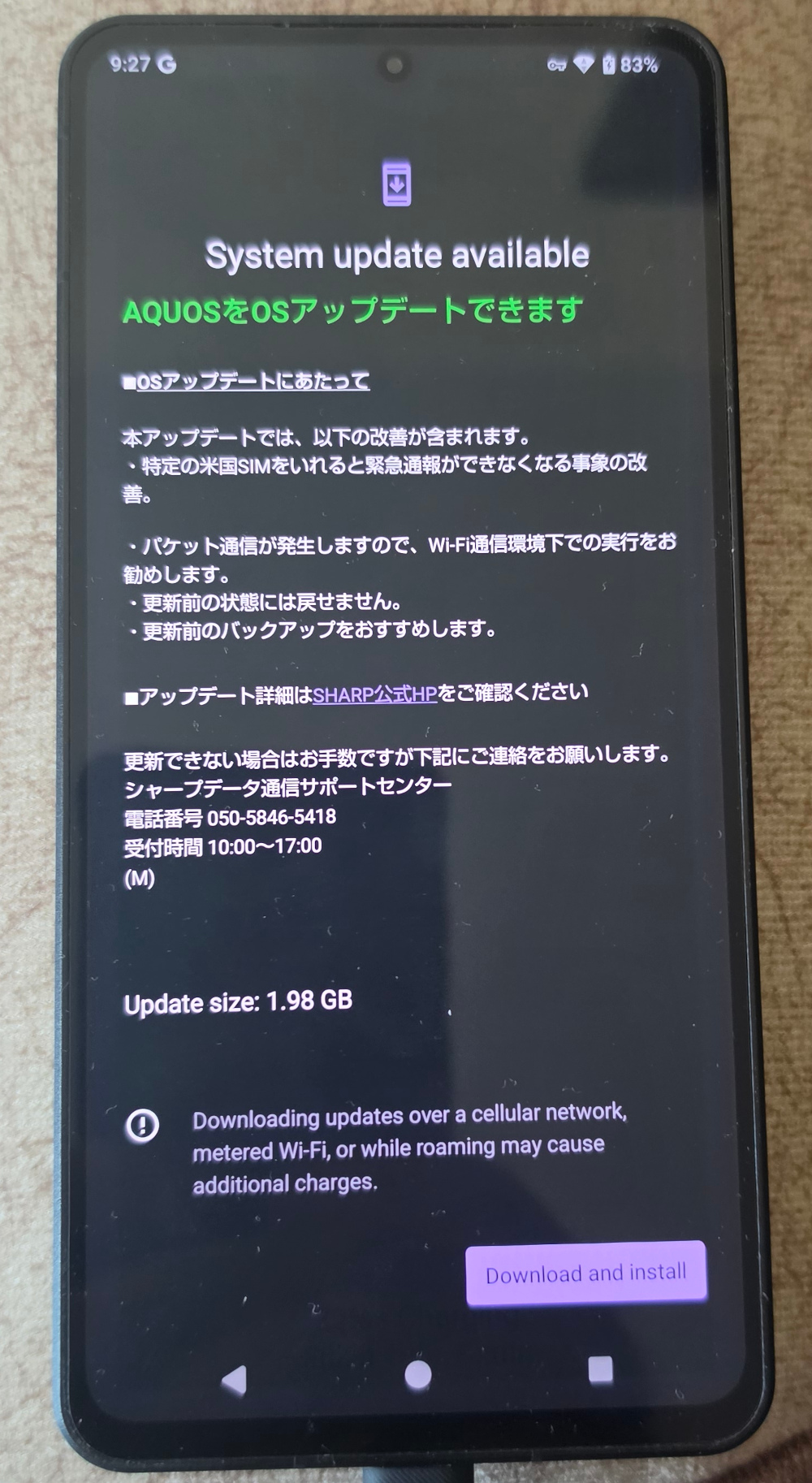
- Go to Settings > System > System updates. When the screen opens, you'll probably see "no updates available" or similar. But do press the "Check" button. Try this a few times if necessary – but you should see the first available update/upgrade on the first try.
- Wait patiently until any updates (software builds) and then major upgrades (OS) are downloaded and installed. Don't forget to check for additional updates after the major upgrade. It's best to check Sharp's support page to see which build number is the latest. Check for and install all updates until you reach that.
- After the phone reboots, before checking for another update, wait until the VPN has reconnected (if set to connect automatically) or connect manually.
- Enjoy!
Advertisement